FAQ
Installation, models, GPU and troubleshooting. No answer here? Ask in GitHub Issues.
How do I run the AI features fully offline? Ollama setup guide (Windows / macOS)
ASRbox’s AI proofreading, subtitle translation and chat need an LLM. Online services require an account, charge per use, and send your subtitle text to a third party; with Ollama the model runs on your own computer — free, offline, and your text never leaves the machine. The whole setup takes about 15 minutes.
Step 1: Download and install Ollama
Ollama is a free tool that runs open-source LLMs right on your own computer — the official site is https://ollama.com. Open its download page and pick the macOS or Windows build:
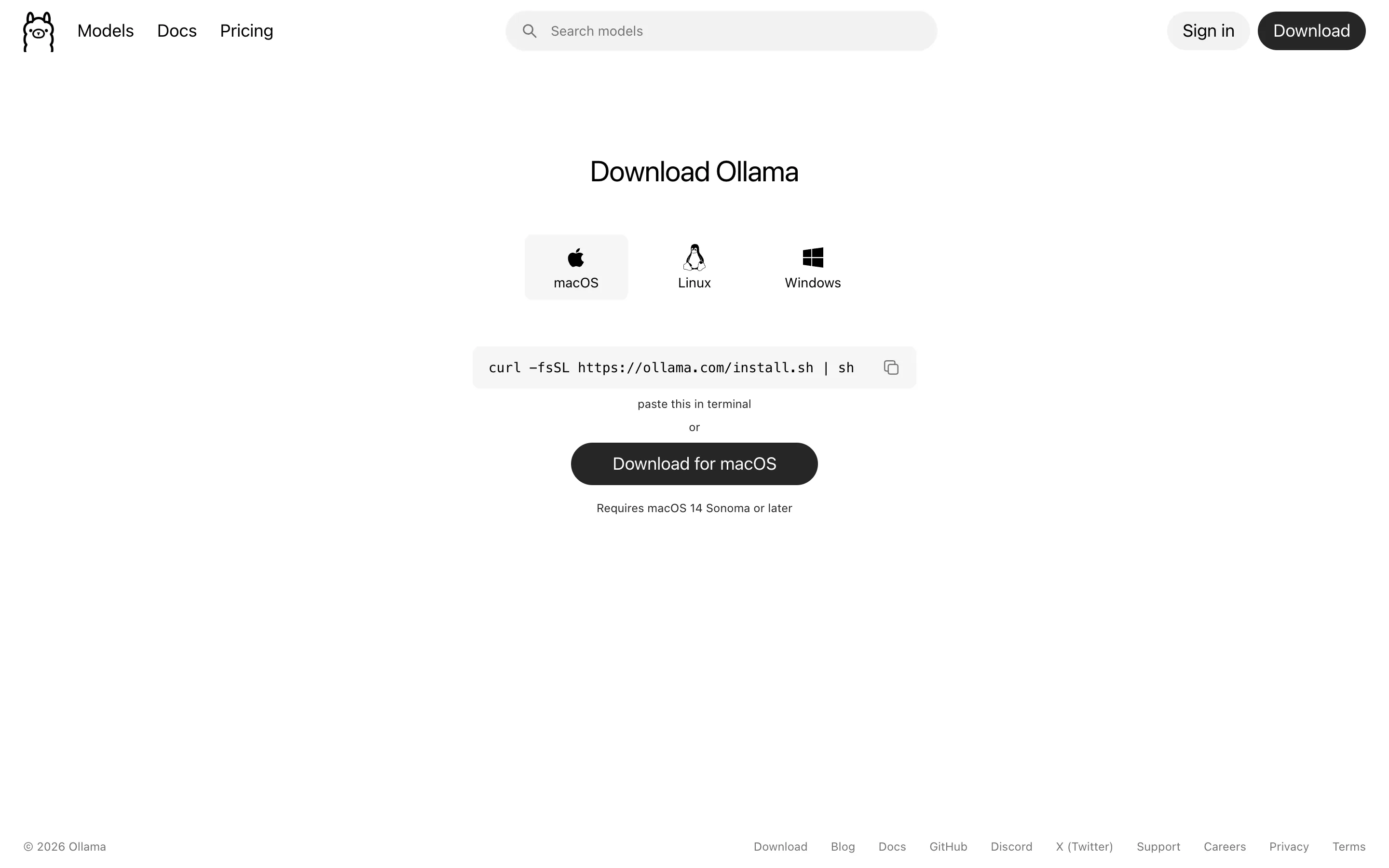
After installing, launch Ollama — a little llama icon appears in the macOS menu bar or the Windows system tray, meaning the service is running in the background. Then verify the install in a terminal (PowerShell on Windows):
ollama --versionNetwork note (important in mainland China)
ollama.com and the model registry can be unstable from mainland China networks, so a proxy/VPN is strongly recommended for the whole process. Browser downloads use the system proxy, but terminal pulls need the proxy set explicitly (replace the port with your own proxy’s):
HTTPS_PROXY=http://127.0.0.1:7897 ollama pull qwen3.5:4b$env:HTTPS_PROXY="http://127.0.0.1:7897"; ollama pull qwen3.5:4bStep 2: Pick a model for your VRAM / RAM
The qwen3.5 model page lists the download size of every variant (Figure 2 below). For subtitle proofreading and translation in ASRbox, 4b–9b is plenty; if your subtitles are long or you chat with whole transcripts often, start at 9b. Choose by hardware: (The newer qwen3.6 / qwen3.8 families currently only ship 27B+ sizes that most computers cannot run, so qwen3.5 is the right everyday pick.)
| Model | Download size | Suggested hardware | Notes |
|---|---|---|---|
| qwen3.5:2b | 2.7 GB | 8 GB RAM | Bare minimum — fine for a first try |
| qwen3.5:4b | 3.4 GB | 16 GB RAM / 4 GB+ VRAM | Light pick: 256K long context, fast |
| qwen3.5:9b | 6.6 GB | 16–24 GB RAM / 8 GB VRAM | Best balance of quality and speed |
| qwen3.5:27b | 17 GB | 32 GB+ RAM / 16 GB+ VRAM | Higher quality, noticeably slower |
| qwen3.5:35b | 24 GB | 48 GB+ RAM | High-end machines only, not required |
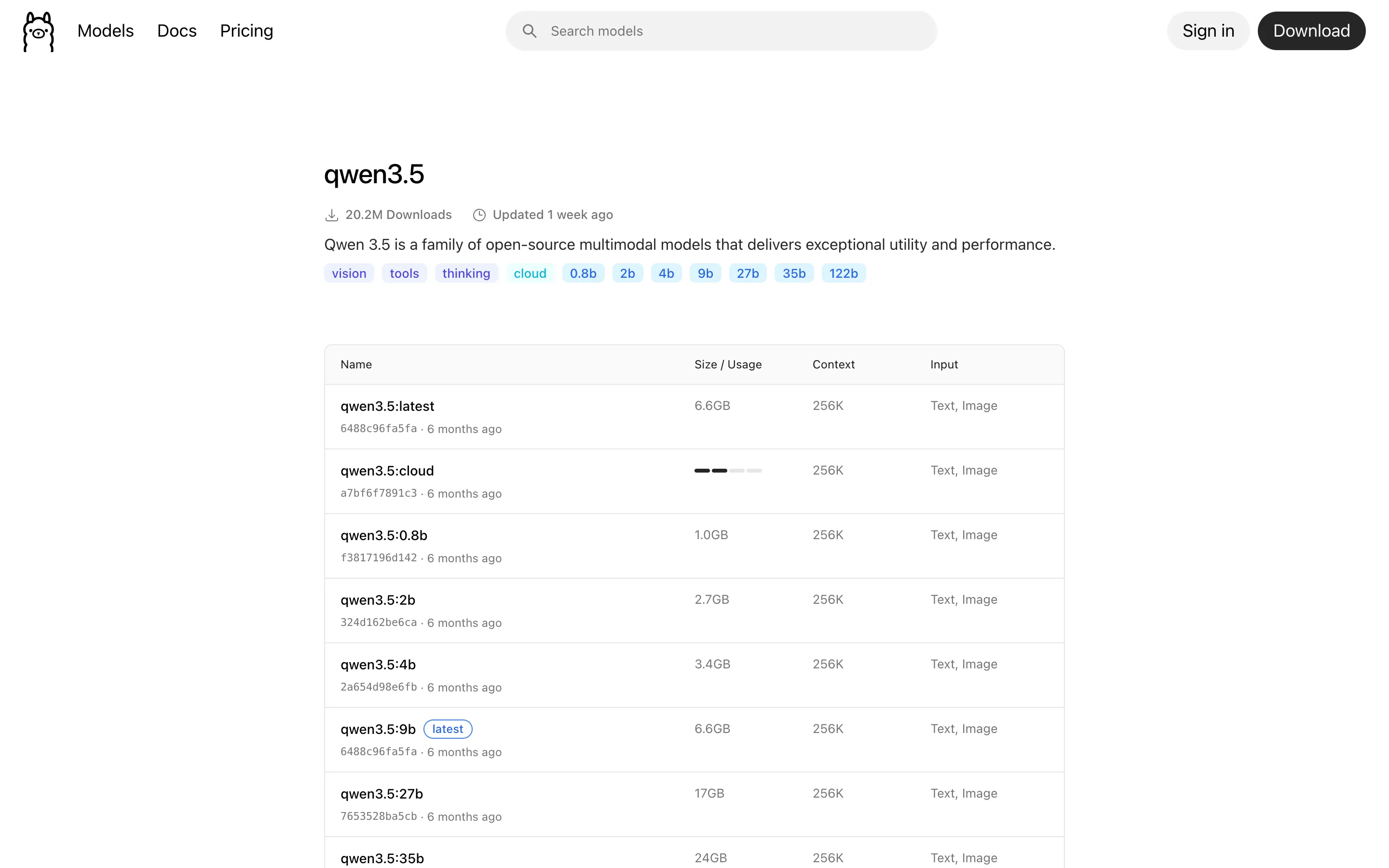
On Windows, go by your GPU’s VRAM; macOS uses unified memory, and a model can only use about half of total RAM (the rest stays with the system). Bigger models are smarter but slower — typo fixing and translation do not need a huge model.
Step 3: Pull the model
Run in a terminal (qwen3.5:4b as the example; swap in qwen3.5:9b for better quality):
ollama pull qwen3.5:4bWhen it finishes, list the models installed on your machine:
ollama list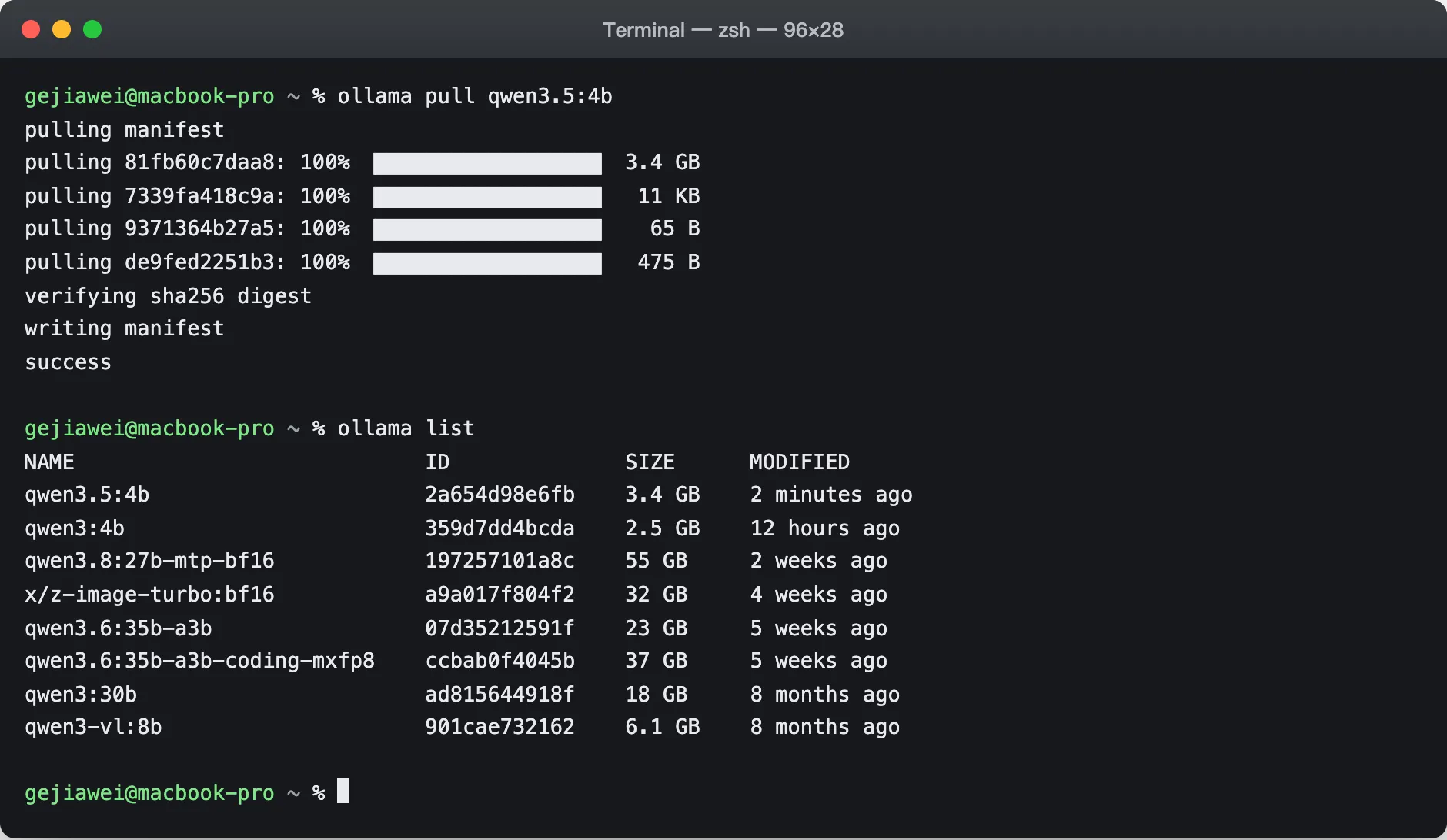
Downloads resume after interruptions — just run the same command again, it never starts over.
Step 4: Connect it in ASRbox — one click, no API key
- 1 Keep Ollama running (the llama icon stays in the menu bar / tray). In ASRbox, open Settings → AI LLM Providers and click "Add LLM provider".
- 2 Choose the Ollama preset: the address fills in automatically as http://localhost:11434/v1, and the API key stays empty — a local service needs no key.
- 3 Click "Fetch models": the dropdown lists every model installed on your machine — just pick one (e.g. qwen3.5:4b). No model ID to type by hand.
- 4 Click "Create" and ASRbox tests the connection automatically. When the provider card shows the "Local endpoint" badge, you are done.
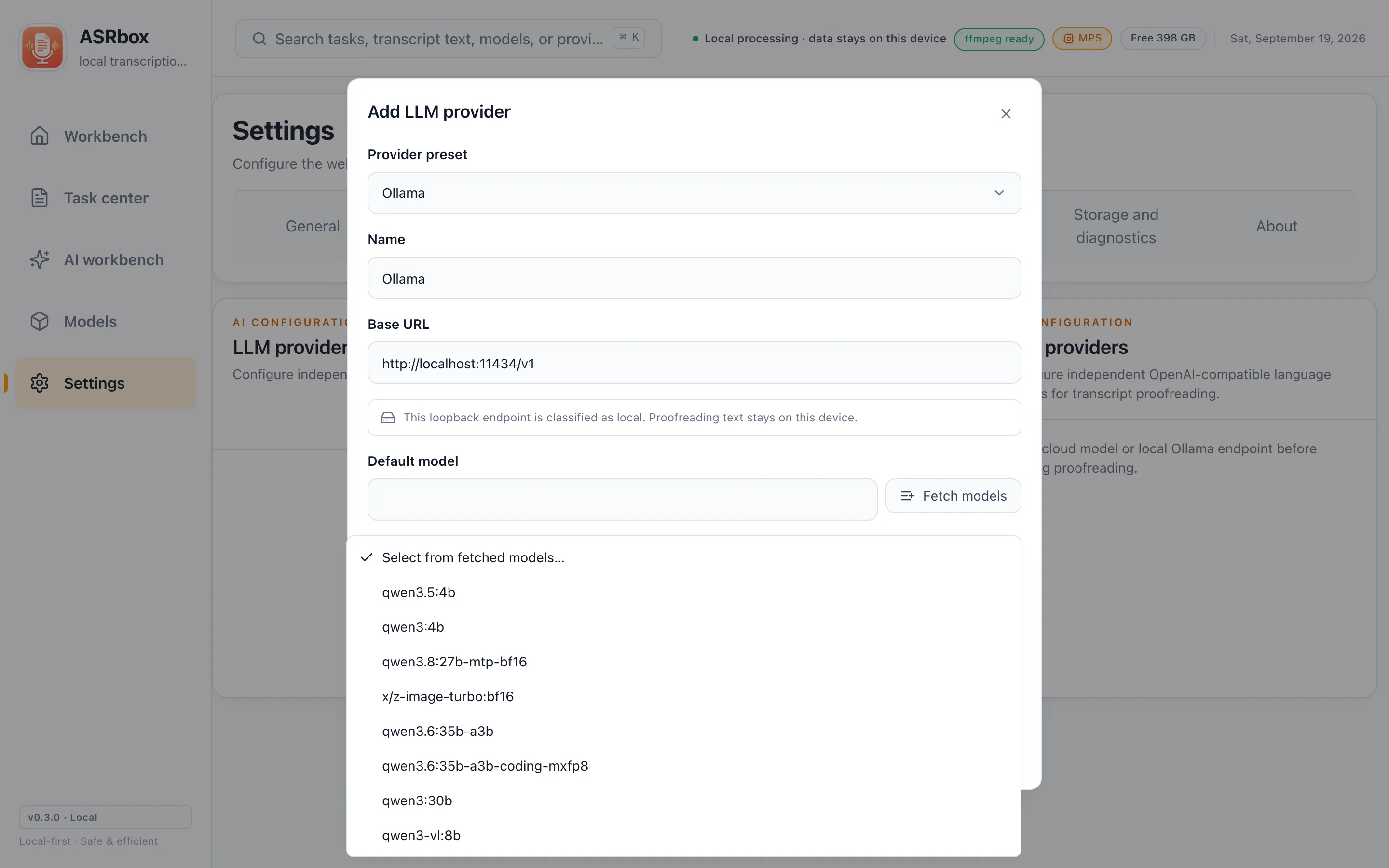
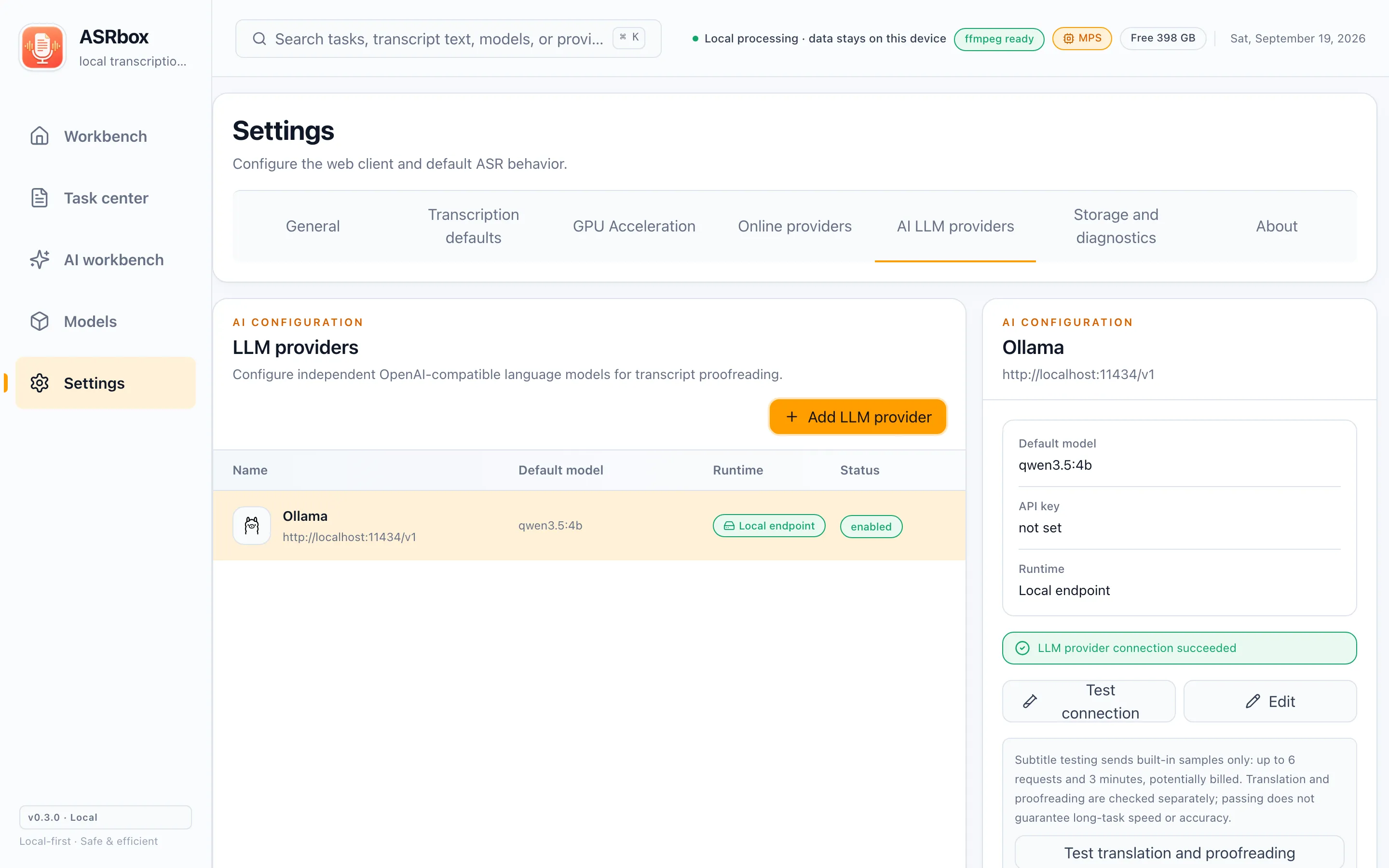
Now select this provider in AI proofreading, translation or chat and everything runs fully offline. Docker note: to reach the host’s Ollama from inside the container, change the address to http://host.docker.internal:11434/v1 — localhost will not work.
Can my computer run ASRbox?
Desktop builds support Windows 10 / 11 (64-bit) and macOS (Apple Silicon, M1 or later). 8 GB of RAM is enough to start with small models; for large-v3-class models or running AI proofreading alongside, 16 GB or more is recommended. On Windows with an NVIDIA GPU, you can also install the CUDA kit in-app for a big speedup.
A Docker web edition is also available — it needs a Linux environment with 8 GB RAM and 15 GB disk, and works well self-hosted for a team. There is no Linux desktop or Intel Mac build yet.
macOS says the app "is damaged and can’t be opened". What do I do?
It is not actually damaged. ASRbox is free and open source and does not pay for an Apple Developer signing certificate, so macOS shows this default warning for apps from unfamiliar sources — a common situation for indie apps.
Either fix works: ① drag ASRbox into Applications, then run xattr -cr /Applications/ASRbox.app in Terminal and open it again; or ② try opening it once (it will fail), then go to System Settings → Privacy & Security and click "Open Anyway" near the bottom. For extra peace of mind, verify the installer against the SHA256SUMS.txt on the download page first.
Windows SmartScreen blocks the installer. What now?
Click "More info" in the blue warning dialog, then "Run anyway". The prompt appears because ASRbox has no paid code-signing certificate yet — every newly published app with a small download base goes through this phase, and it does not mean the software is unsafe.
For extra caution, verify the installer before installing: open a terminal in the download folder and run certutil -hashfile <filename> SHA256, then compare with SHA256SUMS.txt from the download page.
How fast is transcription?
It mainly depends on model size and hardware: small models (base / small) are fast but rough, large models (large-v3 family) are slow but accurate. A few minutes of audio usually takes tens of seconds with a small model; large-v3-turbo is the balanced everyday choice for most people.
Hardware: on Windows, installing the NVIDIA CUDA kit (one click in Settings → Acceleration) speeds things up to ~10×; macOS uses the Apple GPU automatically with zero configuration. Plain CPU works too, just slower with large models.
Model downloads are slow or failing.
Models are hosted on Hugging Face and ModelScope. Hugging Face can be slow from some networks — switch the download source to ModelScope in Settings, or configure a proxy for the app.
Downloads support pause and resume, so an interrupted download continues where it left off. Large models are several GB; if the progress bar looks stuck, it is usually writing chunks — give it time.
Do online ASR / AI features send out my audio?
Local transcription is fully offline — your media never leaves the computer. Audio is only sent out when you deliberately pick an online ASR provider, and it goes to that provider only.
AI proofreading, translation and chat send only subtitle text with limited neighboring context — never audio, file names or local paths. To keep AI features fully on-device as well, follow the Ollama guide above. See the privacy notes for details.
How do I update?
In Settings → About you can check for updates on the stable or prerelease channel. The installer is downloaded and verified against SHA256 in-app, then you install it manually.
You can also grab the latest installer from this site’s download page or GitHub Releases and install over the top — tasks, subtitle versions and settings are all preserved.
The transcript is inaccurate. What can I try?
Try in order: switch to a larger model (large-v3-turbo is noticeably more accurate but slower); make sure the transcription language is set correctly — for dialects or mixed Chinese-English speech try "Auto"; prefer the Faster Whisper family, which provides word-level timestamps so you can check errors against the audio.
After transcribing, run "AI → Proofreading" to have an LLM review the subtitles and suggest ready-to-apply fixes for typos and missed words — both local Ollama and online models work for this step.
Can the Docker edition use a GPU?
The current Docker image targets Linux CPU environments and does not ship GPU support yet. Use the Windows or macOS desktop app for GPU acceleration.
Troubleshooting
A fuller troubleshooting list (log locations, common errors) is maintained in the GitHub docs:
Open the troubleshooting guideRoadmap
ASRbox is built by an independent developer in spare time, with no hard timeline — actual progress lives on GitHub. Current directions:
- Polishing existing features toward a stable release
- More local models and better speaker diarization
- Continuous subtitle editor improvements
Contribute
Bug reports, suggestions, docs and code are all welcome. The easiest way to start: leave your feedback in GitHub Issues.
Go to GitHub Issues